
Image size and Resolution – two important terms often come up when we you are working with photos. It might be taking pictures with a camera or editing on a computer.
Many people get confused about what these mean and how they affect photo quality. This article will explain them in a simple and clear way, with real-life examples.

What is Image Size?
➤ Definition:
Image size means how big your photo is, usually measured in pixels (small squares of color that make up an image).
➤ Units:
- Pixels (px): Used on screens (like phones or computers)
- Inches or centimeters: Used for printing
➤ Example:
A photo that is 4000 x 3000 pixels means:
- 4000 pixels wide
- 3000 pixels tall
Total number of pixels = 12,000,000 (12 megapixels)
➤ Why It Matters:
- Large images can show more detail.
- Smaller images take up less space and load faster on websites.
What is Resolution?
➤ Definition:
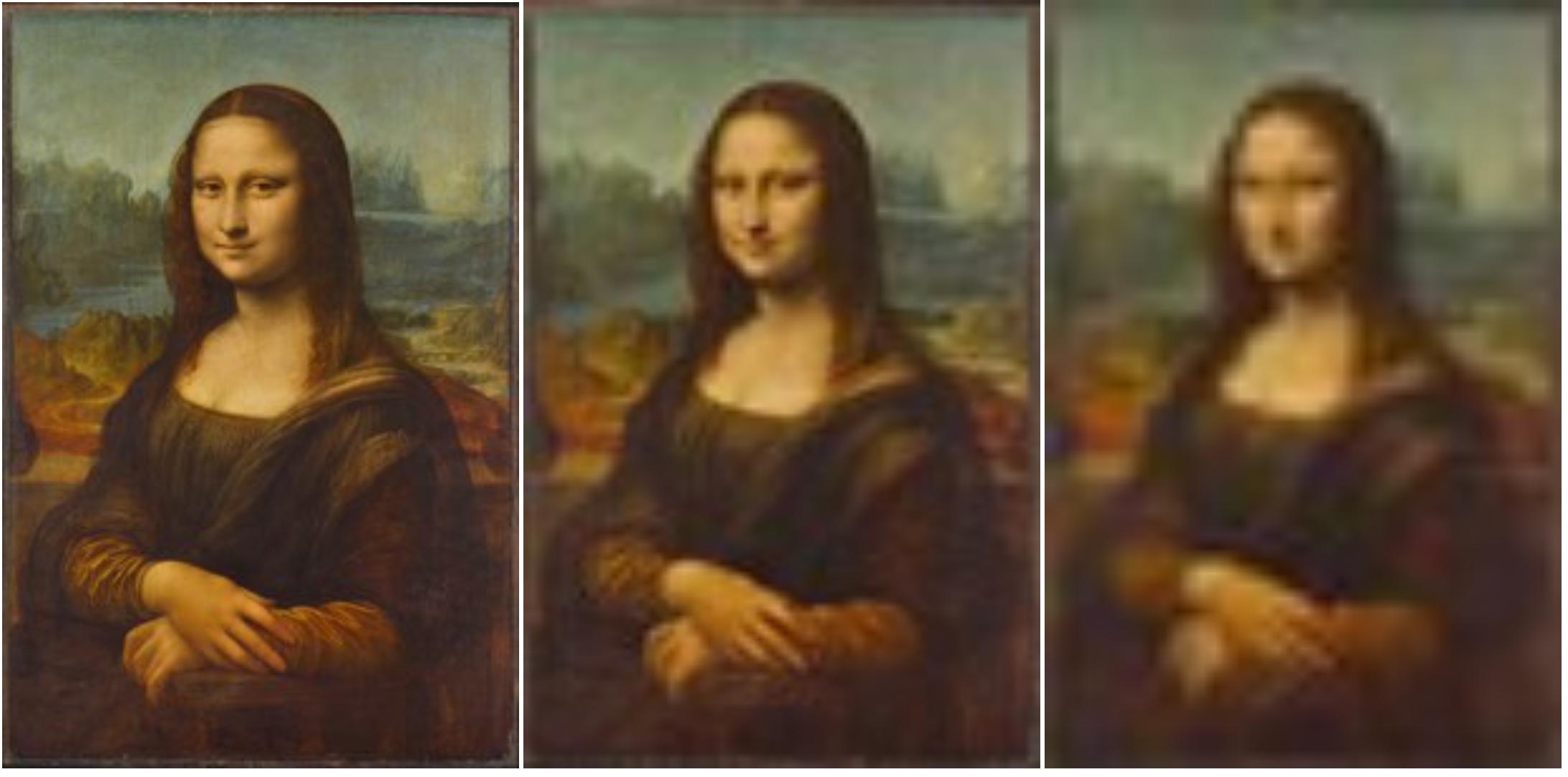
Resolution means how many pixels are packed into one inch of an image when printed. This is measured in PPI (Pixels Per Inch) or sometimes DPI (Dots Per Inch).
➤ Common Resolutions:
- 72 PPI: Used for web or screen (fast loading, lower quality)
- 300 PPI: Used for printing (high-quality prints)
➤ Why It Matters:
- Higher resolution = better print quality
- Lower resolution = pixelated or blurry prints
Image Size vs. Resolution – What’s the Difference?
Think of a photo like a painting made of tiny tiles (pixels):
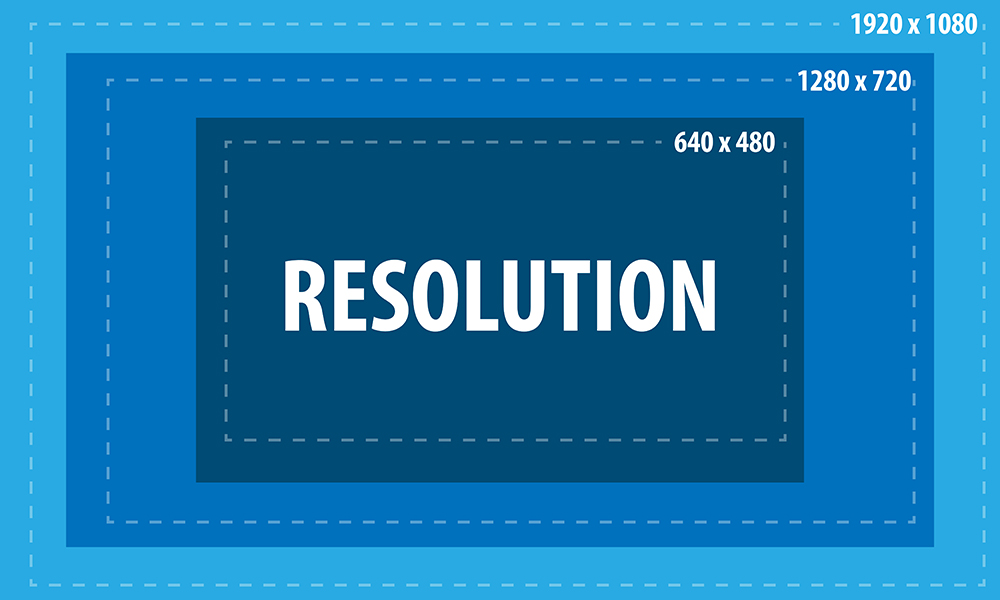
- Image size = How many tiles total (e.g., 4000 x 3000)
- Resolution = How tightly the tiles are packed when printed
Real-Life Example:
Let’s say you have a camera photo that is:
- 3000 x 2000 pixels
- And you set the resolution to 300 PPI
To find out how large it will print:
- Width in inches = 3000 ÷ 300 = 10 inches
- Height in inches = 2000 ÷ 300 = 6.7 inches
So the photo will print at 10″ x 6.7″ with good quality.
What Happens If You Change the Resolution?
Let’s say the same image (3000×2000) is printed at 72 PPI instead of 300 PPI:
- 3000 ÷ 72 = 41.6 inches wide
- 2000 ÷ 72 = 27.7 inches tall
This looks huge, but the print quality will be very poor—you’ll see pixels and the image will look blurry.
How to Check and Change Image Size or Resolution in Photoshop:
- Open your photo in Photoshop.
- Go to Image > Image Size.
- A window will pop up showing:
- Width and Height in pixels or inches
- Resolution (PPI)
You can change the resolution here. If you want to resize without losing quality, make sure “Resample” is unchecked.
Quick Tips
| Situation | Best Image Size | Best Resolution |
|---|---|---|
| Posting on Instagram | 1080 x 1080 px | 72 PPI |
| Printing a 4×6 photo | At least 1200 x 1800 px | 300 PPI |
| Printing a poster (A3) | At least 3500 x 5000 px | 300 PPI |
| Website banner | 1920 x 1080 px | 72 PPI |
Summary
- Image Size is about how many pixels your photo has.
- Resolution is about how densely those pixels are printed.
- For online use, smaller image size and 72 PPI is fine.
- For printing, use a high-resolution image (300 PPI) for best results.
Always choose the right image size and resolution based on how you will use the photo—on screen or on paper.
Standard Image Sizes in the Digital World (2024–2025)
1. Social Media Image Sizes
| Type | Size (pixels) |
|---|---|
| Profile Picture | 320 x 320 px |
| Square Post | 1080 x 1080 px |
| Portrait Post | 1080 x 1350 px |
| Landscape Post | 1080 x 566 px |
| Stories & Reels | 1080 x 1920 px |
| Type | Size (pixels) |
|---|---|
| Profile Picture | 170 x 170 px |
| Cover Photo | 820 x 312 px |
| Shared Image | 1200 x 630 px |
| Stories | 1080 x 1920 px |
Twitter (X)
| Type | Size (pixels) |
|---|---|
| Profile Picture | 400 x 400 px |
| Header Image | 1500 x 500 px |
| Tweet Image | 1200 x 675 px |
YouTube
| Type | Size (pixels) |
|---|---|
| Channel Banner | 2560 x 1440 px |
| Thumbnail | 1280 x 720 px |
2. Website & Blog Image Sizes
| Type | Size (pixels) |
|---|---|
| Full-width Banner | 1920 x 1080 px |
| Blog Post Image | 1200 x 800 px |
| Website Logo | 250 x 100 px (varies) |
| Favicon (browser icon) | 32 x 32 px |
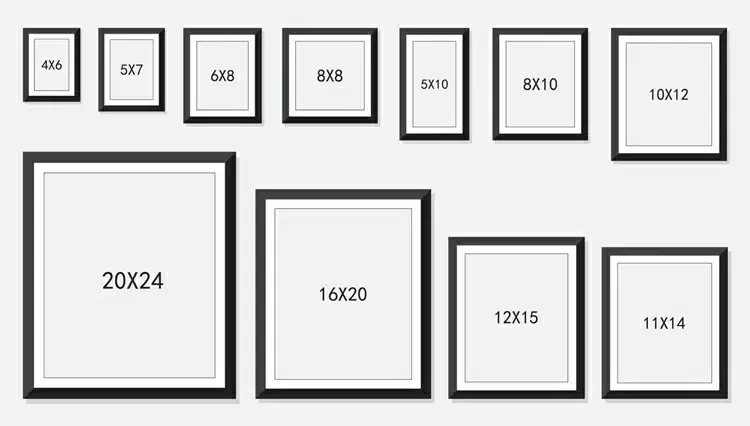
3. Standard Print Sizes (with recommended resolution: 300 PPI)
| Print Size (inches) | Image Size in Pixels |
|---|---|
| 4 x 6 (photo print) | 1200 x 1800 px |
| 5 x 7 | 1500 x 2100 px |
| 8 x 10 | 2400 x 3000 px |
| A4 (8.27 x 11.69) | 2480 x 3508 px |
| A3 (11.7 x 16.5) | 3508 x 4961 px |
| Poster (24 x 36) | 7200 x 10800 px |
Tip: For best print quality, use 300 PPI (pixels per inch).
4. Common Screen Sizes (for wallpapers or UI design)
| Device Type | Screen Size (pixels) |
|---|---|
| Full HD Monitor | 1920 x 1080 px |
| 2K Display | 2560 x 1440 px |
| 4K UHD Display | 3840 x 2160 px |
| iPhone 14 Pro Wallpaper | 1179 x 2556 px |
| Android Phone Wallpaper | 1440 x 3040 px (varies) |
| Laptop Background | 1366 x 768 px or 1920 x 1080 px |
Final Tips
- Always check platform guidelines—they can change.
- Use high-resolution images for printing.
- Use optimized (compressed) images for websites to load faster.
- Always save original files in high resolution so you can resize without losing quality.