

Printing a digital image may seem straightforward, but ensuring it comes out crisp, vibrant, and correctly sized requires a bit of know-how. Whether you’re printing photos at home or preparing professional-quality prints, understanding how digital images translate from screen to paper is key.
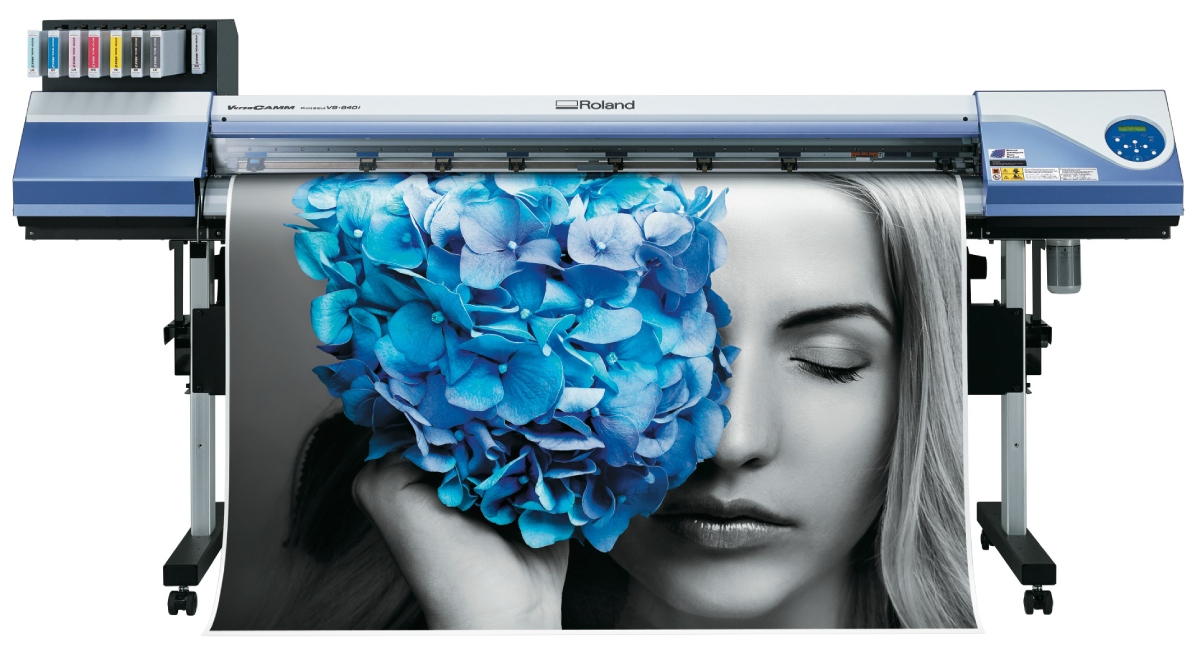
1. Choose the Right Image Resolution
The resolution of an image is typically measured in DPI (dots per inch) or PPI (pixels per inch). For high-quality prints, aim for at least 300 DPI. Here’s how it works:
- Low-res (72 DPI): Suitable for web use only.
- Medium-res (150 DPI): Acceptable for large-format posters viewed from a distance.
- High-res (300 DPI and above): Ideal for standard photo printing and sharp detail.
How to Check Image Resolution:
- On Windows: Right-click the image > Properties > Details tab.
- On macOS: Open image in Preview > Tools > Show Inspector or right click on the image and choose get info.
2. Select the Right File Format
The file format impacts both image quality and print compatibility:
- JPEG: Best for photos with smooth color gradients; use minimal compression.
- PNG: Great for images requiring transparency or sharp lines (like logos).
- TIFF: Preferred by professionals for its lossless quality.
- PDF: Ideal for preserving layout, especially in documents or posters.
3. Adjust Color Mode to CMYK or sRGB
Printers use the CMYK color model (Cyan, Magenta, Yellow, Black), while screens use RGB (Red, Green, Blue). For commercial printing, convert your image to CMYK in software like Adobe Photoshop or Illustrator. If you’re printing at home, most printers accept sRGB, so conversions are not always necessary.
4. Set the Correct Image Dimensions
Know the exact print size you want (e.g., 8×10″, A4, 16×20″) and adjust your image accordingly:
- Use photo-editing tools like Photoshop or GIMP to resize without distorting the aspect ratio.
- Ensure the resolution stays at or above 300 DPI after resizing.
Formula to Calculate Pixel Dimensions for Print:
Width in inches × DPI = pixel width
Height in inches × DPI = pixel height
5. Use the Right Printer Settings
Whether using a home printer or a professional service, ensure:
- Paper type matches printer settings (e.g., glossy photo paper vs matte).
- Highest print quality option is selected.
- Color management is enabled (let printer or software manage color, not both).
6. Do a Test Print
Always test a small version or crop before printing the full-size image, especially when using expensive photo paper or ink.
7. Choose Quality Printing Paper
Paper makes a huge difference:
- Glossy: Sharp, vibrant finish ideal for photos.
- Matte: Non-reflective, elegant, best for artwork and documents.
- Canvas: Great for printing artwork or large photos.
8. Consider Professional Printing Services
For museum-quality prints, art exhibitions, or commercial needs, professional labs offer services like:
- Giclée printing
- Fine art printing
- Color calibration and proofing
Final Thoughts
Printing a digital image properly involves more than hitting “Print.” From image resolution and file format to printer settings and paper type, every step plays a role in achieving a high-quality result. By following this guide, you can ensure your digital photos look just as stunning on paper as they do on screen.


