

Photoshop retouching tools are improving an image by fixing small issues like blemishes, dust, wrinkles, or unwanted objects. Photoshop offers a variety of retouching tools that help make your photos look cleaner and more professional.

1. Spot Healing Brush Tool
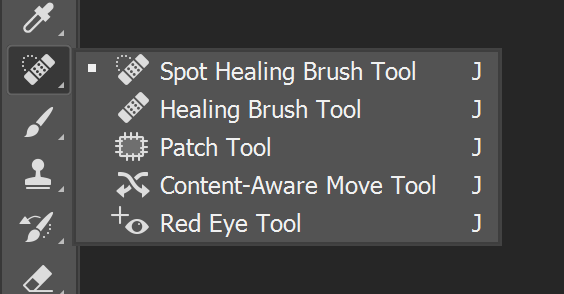
Definition
The Spot Healing Brush Tool automatically removes small imperfections by blending the selected spot with nearby pixels.
How to Use
- Select the Spot Healing Brush Tool (shortcut: J).
- Choose a suitable brush size.
- Click on the spot or blemish.
Example
Remove pimples, dust, or small skin blemishes with one click.
2. Healing Brush Tool
Definition
Lets you fix an area by copying texture from a chosen source and blending it into the target area.
How to Use
- Select the Healing Brush Tool.
- Press Alt (Option) and click to select the source.
- Paint over the area to fix.
Example
Fix skin texture by copying smooth skin from another area.
3. Patch Tool
Definition
The Patch Tool replaces a selected area with another part of the image and blends it naturally.
How to Use
- Select the Patch Tool.
- Draw around the area you want to fix.
- Drag the selection to a clean area.
Example
Remove dark circles or large blemishes under eyes.
4. Clone Stamp Tool
Definition
Copies exact pixels from one area to another without blending.
How to Use
- Select the Clone Stamp Tool (shortcut: S).
- Hold Alt and click to pick a source.
- Paint over the area to copy the texture.
Example
Remove objects like wires or blemishes in skies or walls.
5. Content-Aware Fill
Definition
A smart Photoshop feature that fills a selected area based on the surrounding pixels.
How to Use
- Make a selection using Lasso Tool or Marquee Tool.
- Go to Edit > Content-Aware Fill.
- Adjust the settings in the preview window and click OK.
Example
Remove a person from the background and Photoshop fills it with matching sky or grass.
6. Remove Tool (New in Photoshop)
Definition
A powerful AI-based tool that lets you brush over an object, and Photoshop removes it and fills the background automatically.
How to Use
- Select the Remove Tool from the toolbar.
- Brush over the object you want to remove.
- Release the mouse; Photoshop removes the object.
Example
Remove a trash can, telephone pole, or person from a street or park scene in seconds.
7. Red Eye Tool
Definition
Fixes red-eye effect caused by camera flash.
How to Use
- Select the Red Eye Tool (under the Spot Healing Brush).
- Click on the red part of the eyes.
Example
Fix red eyes in a photo of someone taken with flash.
8. Dodge Tool
Definition
Lightens specific parts of an image.
How to Use
- Select the Dodge Tool.
- Choose Range (Midtones, Shadows, or Highlights).
- Paint over areas you want to brighten.
Example
Brighten eyes or bring out highlights on cheeks.
9. Burn Tool
Definition:
Darkens specific areas of the image.
How to Use
- Select the Burn Tool.
- Adjust exposure and brush softness.
- Paint over areas to darken.
Example
Add shadow or define eyebrows for a dramatic effect.
10. Sponge Tool
Definition
Changes the color saturation in parts of the image.
How to Use
- Choose the Sponge Tool.
- Select Saturate or Desaturate from the top menu.
- Brush over the area.
Example
Enhance lip color or tone down oversaturated skin.
11. Color Replacement Tool
Definition
Allows you to paint over an object while keeping its texture and replacing only the color.
How to Use
- Select the Color Replacement Tool (under the Brush Tool).
- Choose a foreground color.
- Set the mode to Color.
- Brush over the area to change its color.
Example
Change the color of a shirt from red to blue without affecting the fabric texture.
Conclusion
Retouching tools in Photoshop make your photos look clean, clear, and professional. Whether you’re removing small spots or completely changing colors, each tool has a unique purpose. By practicing these tools one by one, you’ll gain better control and confidence in your photo editing skills.
